Bulk-adding 400 existing students to a new Moodle™ cohort: the follow-up cookbook
Adding existing Moodle™ users to a cohort in bulk — the CSV pattern (same form, different upload type), the email-list pitfall, removing users from cohorts (where the bulk upload can't help), and the year-rollover trick. Three downloadable templates.
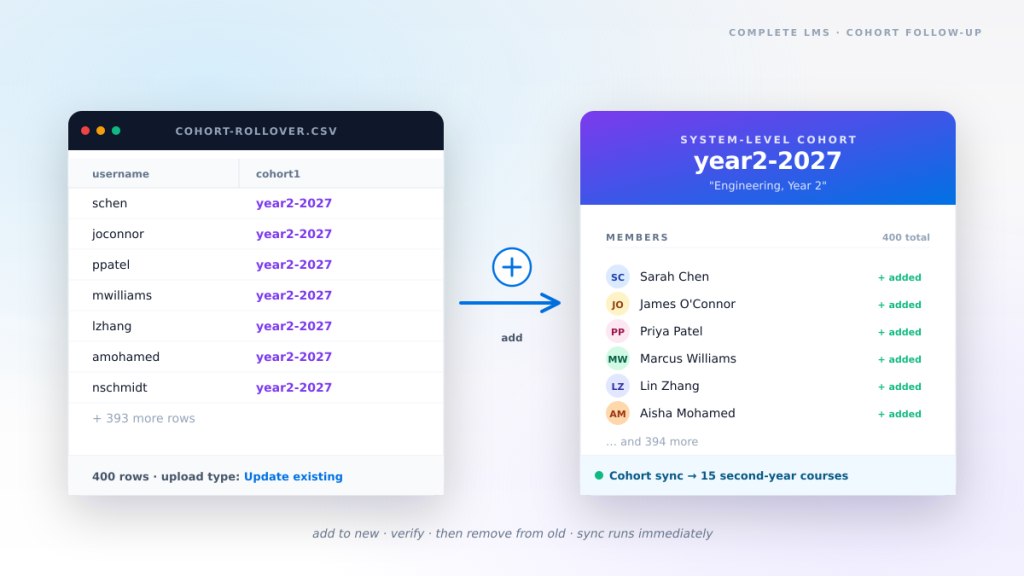
A day after we published the bulk Moodle™ user-upload cookbook, the email came in. From two clients, almost word for word: "This is great, but we don't need to create new users — we need to add the 400 students we already have to a new cohort we just set up for second-year. What's the CSV for that?"
It is a very common follow-up. And the answer is: almost exactly the same CSV, with a different upload-type setting. But there are a couple of edges worth knowing about — particularly if you only have an email list, and particularly when you want to move users rather than just add them.
So this is the short version. The cookbook for the day-after-upload case.
Same form, different mode
The screen is the same: Site administration → Users → Accounts → Upload users.
The trick is in the dropdown labelled Upload type on the second screen (after you upload the CSV). On the first round we set it to Add new only, skip existing users. This time, you want one of:
- Add new and update existing users — uses the CSV to update users that already exist (matched by username), and creates any new ones.
- Update existing users only — exactly what it says. If a username in the CSV doesn't already exist, the row is skipped.
For our case ("add these 400 users to a cohort, don't create anyone new"), pick Update existing users only. It is the safer of the two — if a username is wrong, you get a warning rather than a new orphan account.
The other settings worth checking on this run:
- Existing user details: set to No changes — you don't want this CSV's columns silently rewriting existing user fields. In fact, you can leave most fields out of the CSV entirely (see Template 1).
- Force password change: None — you are not creating new users; you don't want existing ones force-rotated.
- Allow renames / Allow deletes / Allow suspending: No on all three, unless you specifically need them.
Template 1 — the minimum bulk cohort add
This is the simplest case. Existing users (matched by username) get added to one cohort. Two columns. That's it.
username,cohort1
schen,year2-2027
joconnor,year2-2027
ppatel,year2-2027
mwilliams,year2-2027
lzhang,year2-2027
amohamed,year2-2027
nschmidt,year2-2027
mrossi,year2-2027
ttanaka,year2-2027
rloya,year2-2027cohort-add-1-minimal.csv
Ten existing students added to one cohort (year2-2027). The smallest useful file for this case.
Drop this in, set Upload type to Update existing users only, and Moodle™ adds each of those ten students to the year2-2027 cohort. They keep all their existing course enrolments, all their previous cohort memberships, all of their data. The only change is one additional cohort membership per row.
If year2-2027 has Cohort sync as an enrolment method on a set of second-year courses, those students appear in those courses moments later. That is the leverage cohorts give you.
Three sanity checks worth running before you upload:
- The cohort
idnumberincohort1must already exist. If it doesn't, Moodle warns on each row and processes the row without any cohort change. - Usernames must match exactly. Case matters —
SChenandschenare different. - Users already in
year2-2027are silently skipped on that column. No error, no duplicate.
Template 2 — adding to several cohorts at once
Same pattern, more cohort columns. Useful when you want each user in a year cohort and a discipline cohort and something else, all in one upload.
username,cohort1,cohort2,cohort3
schen,year2-2027,engineering-2027,scholarship-2027
joconnor,year2-2027,engineering-2027,
ppatel,year2-2027,data-science-2027,
mwilliams,year2-2027,data-science-2027,
lzhang,year2-2027,business-2027,
amohamed,year2-2027,engineering-2027,scholarship-2027
nschmidt,year2-2027,business-2027,
mrossi,year2-2027,data-science-2027,
mwilkins,,,staff-newsletter-q3
dkumar,,,staff-newsletter-q3
smitchell,,,staff-newsletter-q3
ahoffman,,,staff-newsletter-q3cohort-add-2-multiple.csv
Students placed in a year cohort + a discipline cohort + (where applicable) the scholarship recipients cohort, plus teaching staff into a newsletter cohort.
Download CSVReading it:
- Each student goes into their year cohort, their discipline cohort and (if applicable) the scholarship recipients cohort.
- James, Priya, Marcus, Lin, Noah and Mia only need two cohorts each; the third column is left empty for them. Moodle ignores empty cells.
- Margaret, David, Sarah and Anna (teaching staff) only get added to the
staff-newsletter-q3cohort — the year and discipline columns are empty.
That is one CSV, one upload, dozens of cohort additions across multiple cohorts. Same Upload type setting — Update existing users only.
What if you only have an email list?
This is the most common pain point. The registry hands you a spreadsheet of student emails, not usernames. Moodle's bulk upload only matches existing users by username — there is no "match by email" option.
You can't upload email,cohort1 directly. You have to convert the email list to usernames first.
The shortest path is one SQL query against the Moodle database (read-only, no harm). From your DB client or phpMyAdmin:
SELECT username, email
FROM mdl_user
WHERE email IN (
  '[email protected]',
  '[email protected]',
  '[email protected]'
  -- … and so on …
)
ORDER BY email;
Paste the result into a spreadsheet, drop the email column, add a cohort1 column with your target cohort idnumber, and upload that. Five minutes of work for any size of email list.
If you would rather not touch the database, you can do the same mapping via Moodle's user browser at Site administration → Users → Browse list of users: filter by email one at a time, copy the usernames out. Fine for 20 users. Painful past 30. Either way the mapping has to happen before the upload.
Removing users from a cohort
This is the one the bulk upload can't help with. The cohort1, cohort2, … columns only add. There is no cohort1_remove column, no removal flag — Moodle's bulk upload is one-way for cohort membership.
To remove users from a cohort in bulk, the realistic options are:
- The cohort's own UI. Open the cohort in Site administration → Users → Cohorts, tick the users you want gone, click Remove. Fine for fewer than 30. Painful at 300.
- A direct database delete. One
DELETE FROM mdl_cohort_members WHERE cohortid = … AND userid IN (…)statement. Fast, but only do it if you are confident with SQL and your Moodle's data model. Back the database up first. - A small CLI script. Moodle's
admin/cli/tools don't ship with a cohort-remove CSV importer, but it is a thirty-line PHP script aroundcohort_remove_member(). We have one we hand to clients on engagements. - A plugin. Community plugins like local_bulkenrolments add cohort bulk management screens. They work; they're one more thing to keep current with Moodle releases.
If the use case is "we are at the end of the academic year and we need to clear out sem1-2026," the database route is usually the right answer. Back up, run the DELETE, log what you did. Two minutes of work and a clean audit trail.
The year-rollover pattern
Put the pieces together and you get the most common cohort operation in any institution: every twelve months, advance last year's first-year students into the second-year cohort.
This is add to new + remove from old. The CSV does the first half. The second half is one of the tools above.
username,cohort1
schen,year2-2027
joconnor,year2-2027
ppatel,year2-2027
mwilliams,year2-2027
lzhang,year2-2027
amohamed,year2-2027
nschmidt,year2-2027
mrossi,year2-2027
ttanaka,year2-2027
rloya,year2-2027
ksingh,year2-2027
mfernandez,year2-2027
jpark,year2-2027
clima,year2-2027
nkato,year2-2027cohort-add-3-rollover.csv
Fifteen students promoted into the year2-2027 cohort. Used together with a separate removal step from the previous year's cohort.
A few practical thoughts on rollovers:
- Don't remove users from the old cohort until you've verified the new cohort is correct. Once they're out of
year1-2026, they lose access to any cohort-synced courses linked to that cohort. The safe order is: add to new, verify enrolments in the new courses, then remove from old. - Cohort sync runs immediately. If
year2-2027is sync-enrolled to fifteen second-year courses, uploading 400 students triggers 6,000 course enrolments inside the next sync run. Plan it for off-peak hours, and watch the cron logs. - Audit, audit, audit. Save the CSV file you uploaded with a clear filename and date —
cohort-add-year2-2027-2026-06-20.csv— and keep it for the academic year. When the dean of academic services emails three weeks later asking who got moved when, you want a clear answer.
A handful of things to watch out for
- Cohort idnumber typos.
year2-2027andyear2_2027are different cohorts. If you upload to the wrong one, Moodle creates nothing weird — your users just end up in a cohort that doesn't have any course sync, which manifests as "I can see the cohort but no new courses." - System vs category cohorts. Some Moodle setups use category-level cohorts. A user added to a category-level cohort can be sync-enrolled in courses within that category but won't show up in some site-wide reports. If you're not seeing the users where you expect them, check whether the cohort lives at the site level or inside a course category.
- Cohort idnumber case-sensitivity. Some sites use uppercase (
Y2-2027), some use lowercase (y2-2027). The upload matches the case exactly. - Cohort sync timing. Cohort sync runs on Moodle's scheduled-tasks cron, not instantly. On a well-tuned site it is within a minute; on a struggling cron it can be much longer. Don't tell teachers their students are in the course until you have seen them appear.
- Audit log retention. Bulk uploads land in the logs (Site administration → Reports → Logs), but only as long as your log retention keeps them. If you need a permanent record of who got moved when, save the CSV externally.
If the registry has just sent over a spreadsheet of 400 students and you have a new cohort to populate this week, talk to an engineer — we will do the data clean-up, the dry-run on a sandbox copy of your Moodle™, the upload itself, and the verification afterwards. We have done this rollover often enough that the dance with cohort sync and the cron timing is muscle memory at this point. See our Moodle™ training and managed Moodle™ hosting services for the longer engagements.