Onboarding 800 students in twenty minutes: the bulk Moodle™ user-upload cookbook
Bulk-uploading users into Moodle™ via CSV — students, teachers, supervising teachers, system managers — plus the cohort trick that makes the next semester rollover painless. Four downloadable CSV templates to start from.
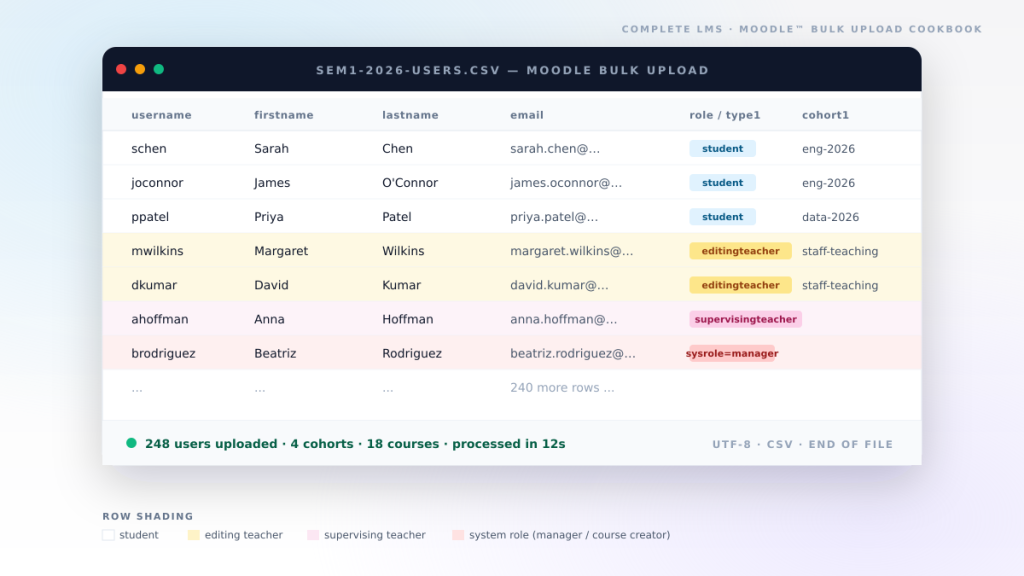
Every semester we get a version of the same email from at least one client. It is usually two days before classes start: "We have got the spreadsheet of new enrolments from the registry, can you push them into Moodle today?" Sometimes it is 30 students. Sometimes it is 800. Sometimes it is 800 students plus 40 teachers plus a handful of category managers, all in one go.
Moodle's bulk user upload handles all of this, and quite a lot more, and it has done since Moodle 2.x — but the documentation is split across three pages and a handful of forum threads, and the CSV column names are the kind of thing you only learn by getting them wrong. So this is the cookbook we keep coming back to. With downloadable CSV templates you can copy, paste your real users into, and feed straight into Moodle™.
Where the upload lives
The feature is at Site administration → Users → Accounts → Upload users. You need a system role with the moodle/site:uploadusers capability — by default that is site administrators. If you are doing this regularly, ask whoever runs your Moodle™ to give you the Manager role at the site level; it is the right role for "I do user administration but I am not the head sysadmin".
Two things matter on every upload:
- The CSV file itself — which is most of this article.
- The upload settings — encoding (always UTF-8), delimiter (comma), what to do with existing users, password handling, and whether to force a password change on first login.
We almost always set:
- CSV delimiter: comma
- Encoding: UTF-8 (this matters; if you upload a file Excel saved as Windows-1252, accented characters in names will be mangled — half the bug reports we see on staff uploads are exactly this)
- Upload type: Add new only, skip existing users (unless you are explicitly updating)
- New user password: Field required in file — or Create password if needed and send via email if you want Moodle™ to email each user their temporary password
- Force password change: All users on the very first run, then Users having a weak password on subsequent runs
Template 1 — the minimum viable CSV
The smallest CSV that does anything useful has five columns. Everything else is optional.
username,password,firstname,lastname,email
schen,TempPass!2026,Sarah,Chen,[email protected]
joconnor,TempPass!2026,James,O'Connor,[email protected]
ppatel,TempPass!2026,Priya,Patel,[email protected]
mwilliams,TempPass!2026,Marcus,Williams,[email protected]
lzhang,TempPass!2026,Lin,Zhang,[email protected]
amohamed,TempPass!2026,Aisha,Mohamed,[email protected]
nschmidt,TempPass!2026,Noah,Schmidt,[email protected]
mrossi,TempPass!2026,Mia,Rossi,[email protected]
ttanaka,TempPass!2026,Takeshi,Tanaka,[email protected]
rloya,TempPass!2026,Rosa,Loya,[email protected]bulk-users-1-minimal.csv
Ten example students. Just the required fields — username, password, firstname, lastname, email. Perfect for "I just need to bulk-create accounts."
Download CSVA few things to know about this minimum:
- Usernames are lowercased automatically, and Moodle™ will reject anything with spaces or unusual characters (dot, underscore, dash and the
@sign are all allowed — the@is permitted because some institutions use email-as-username). - Email addresses must be unique across the whole site. The same email twice in one file is the most common reason rows get rejected without an obvious error.
- The temporary password gets force-changed on first login if you tick Force password change in the upload screen. Pick something that comfortably exceeds your site's password policy; if it doesn't, every single row fails.
That last point is the one that catches people. If your Moodle™ requires 12 characters with one uppercase, one digit, and one symbol, then Welcome1 rejects every row in the file and you get back a wall of red error lines. Set the temporary password to something that obviously passes.
Template 2 — students and teachers, all in one file
Now the interesting bit. The bulk upload can simultaneously create accounts and enrol them in courses with a specific role. That replaces three separate processes with a single file.
The relevant columns come in numbered groups:
course1,course2, … — the shortname of the course (not the full name; not the ID — the shortname as shown in Course settings → Course short name).type1,type2, … — the role to assign in that course, by role shortname (student,editingteacher, or any custom role).group1,group2, … — optional group within that course.
The numeric suffix matches the columns up: course1 + type1 + group1 belong together, course2 + type2 + group2 belong together, and so on. Leave a column empty if a row does not use it (do not delete the column header).
username,password,firstname,lastname,email,course1,type1,group1,course2,type2,group2
schen,TempPass!2026,Sarah,Chen,[email protected],ENG1001,student,Tutorial A,ENG1002,student,
joconnor,TempPass!2026,James,O'Connor,[email protected],ENG1001,student,Tutorial A,,,
ppatel,TempPass!2026,Priya,Patel,[email protected],DAT2001,student,,BUS3001,student,
mwilliams,TempPass!2026,Marcus,Williams,[email protected],DAT2001,student,Tutorial B,,,
lzhang,TempPass!2026,Lin,Zhang,[email protected],BUS3001,student,,,,
amohamed,TempPass!2026,Aisha,Mohamed,[email protected],ENG1001,student,Tutorial B,,,
mwilkins,TempPass!2026,Margaret,Wilkins,[email protected],ENG1001,editingteacher,,ENG1002,editingteacher,
dkumar,TempPass!2026,David,Kumar,[email protected],DAT2001,editingteacher,,,,
smitchell,TempPass!2026,Sarah,Mitchell,[email protected],BUS3001,editingteacher,,,,bulk-users-2-courses-and-roles.csv
Six students enrolled in one or two courses (with tutorial group on some), plus three editing teachers. All in one file.
Download CSVTwo pitfalls worth knowing:
- The
typecolumn takes a role shortname, not the role's display name.studentworks;Studentdoes not.editingteacherworks;Editing teacherdoes not. Find role shortnames at Site administration → Users → Permissions → Define roles — they are in the "Short name" column. - If the course shortname does not exist, the user account is still created, but the row gets a warning about the missing course. Worth knowing because a typo in the course code produces orphaned accounts that look fine in the user list but are not enrolled anywhere.
Template 3 — mixed roles, including system-level
Course-level roles are the common case. Sometimes you also need to give a user a system-level role — Manager, Course Creator, your custom "Faculty Head" role, anything that lives at the site level rather than inside a single course.
The column for that is sysrole1, sysrole2, etc. It also takes role shortnames.
If your institution has a custom role like supervising teacher — which is what we tend to see for the senior teacher who oversees a cohort but isn't editing course content day-to-day — that's just another role shortname. Put it in the type column when it's per-course, or in sysrole when it's site-wide.
username,password,firstname,lastname,email,course1,type1,course2,type2,sysrole1
schen,TempPass!2026,Sarah,Chen,[email protected],ENG1001,student,ENG1002,student,
joconnor,TempPass!2026,James,O'Connor,[email protected],ENG1001,student,,,
ppatel,TempPass!2026,Priya,Patel,[email protected],DAT2001,student,,,
mwilkins,TempPass!2026,Margaret,Wilkins,[email protected],ENG1001,editingteacher,ENG1002,editingteacher,
dkumar,TempPass!2026,David,Kumar,[email protected],DAT2001,editingteacher,,,
ahoffman,TempPass!2026,Anna,Hoffman,[email protected],ENG1001,supervisingteacher,DAT2001,supervisingteacher,
brodriguez,TempPass!2026,Beatriz,Rodriguez,[email protected],,,,,manager
jsmith,TempPass!2026,John,Smith,[email protected],,,,,coursecreatorbulk-users-3-mixed-roles.csv
Students, editing teachers, supervising teachers (a custom role) and a site Manager + Course Creator. Three different role tiers in eight rows.
Download CSVReading that file row by row:
- Sarah and James are regular students in ENG1001 (Sarah is also in ENG1002).
- Priya is a student in DAT2001.
- Margaret is editing teacher in ENG1001 and ENG1002.
- David is editing teacher in DAT2001.
- Anna is a supervising teacher in ENG1001 and DAT2001 — assuming
supervisingteacheris the shortname of the custom role on your Moodle™. - Beatriz is a site-wide Manager — no course role at all, just system-level access.
- John is a Course Creator at the site level.
Three different role tiers in seven rows. Moodle™ processes the file one row at a time and applies whatever combination of roles the columns ask for.
Cohorts — the part most institutions skip
Cohorts are easily the most under-used feature of Moodle™ in our experience. They turn "we need to enrol 300 students into nine courses" into "we put 300 students in one cohort and link the cohort to nine courses."
A cohort is a site-level or category-level group of users — students from the same intake, all the teaching staff, everyone in the Engineering Faculty, whatever logical grouping makes sense for your institution. Once a cohort exists, you can:
- Sync-enrol every cohort member into a course, automatically, by adding the Cohort sync enrolment method to that course. Add someone to the cohort, they appear in the course. Remove them, they are suspended in the course.
- Restrict course access, activities or content to specific cohorts using availability conditions.
- Send messages to a whole cohort in one go.
- Drive reporting (and the Learning Analytics models) by cohort membership.
The bulk-upload CSV adds users to cohorts via the cohort1, cohort2, … columns. The value is the cohort's idnumber (not its display name). The idnumber is the stable short identifier you set in Site administration → Users → Accounts → Cohorts → Edit. If a cohort does not have an idnumber yet, give it one before you upload — "sem1-2026", "eng-2026", "staff-teaching", that sort of thing.
username,password,firstname,lastname,email,cohort1,cohort2
schen,TempPass!2026,Sarah,Chen,[email protected],sem1-2026,eng-2026
joconnor,TempPass!2026,James,O'Connor,[email protected],sem1-2026,eng-2026
ppatel,TempPass!2026,Priya,Patel,[email protected],sem1-2026,data-2026
mwilliams,TempPass!2026,Marcus,Williams,[email protected],sem1-2026,data-2026
lzhang,TempPass!2026,Lin,Zhang,[email protected],sem1-2026,bus-2026
amohamed,TempPass!2026,Aisha,Mohamed,[email protected],sem1-2026,eng-2026
nschmidt,TempPass!2026,Noah,Schmidt,[email protected],sem1-2026,bus-2026
mrossi,TempPass!2026,Mia,Rossi,[email protected],sem1-2026,data-2026
mwilkins,TempPass!2026,Margaret,Wilkins,[email protected],staff-teaching,
dkumar,TempPass!2026,David,Kumar,[email protected],staff-teaching,
ahoffman,TempPass!2026,Anna,Hoffman,[email protected],staff-teaching,staff-supervisorsbulk-users-4-with-cohorts.csv
Students placed in a semester-wide cohort plus a discipline cohort, and staff into a staff cohort. The trick that makes the next semester rollover painless.
Download CSVWhat is happening:
- Every student is in the
sem1-2026cohort (everyone enrolled this semester) and in one of three discipline cohorts. - If
sem1-2026is sync-enrolled to a "Library induction" course as students, all eight students appear in that course automatically — no further action required. - If
eng-2026is sync-enrolled to ENG1001 and ENG1002 as students, Sarah and James and Aisha turn up in both courses, with no per-course rows in this CSV. - The teaching staff (
staff-teaching) might be sync-enrolled to a staff-only resource course, or just used for messaging and announcements. - Anna is also in
staff-supervisors, which might be a smaller cohort granted access to the supervisor reports.
This is the trick we wish more institutions had been shown earlier. Set up your cohorts and your cohort-sync enrolment methods carefully once, and from then on the entire next-semester rollover becomes "build a CSV with usernames and cohort memberships" and Moodle™ does the rest.
Real-world pitfalls
A list of things that have eaten our Friday afternoons over the years:
- Excel destroys your UTF-8. If you have any user with accented characters or non-Latin script, open the saved file in a real text editor and verify it is UTF-8. Excel sometimes saves "CSV UTF-8" which secretly includes a BOM that confuses older Moodle versions; saving as plain "CSV" can quietly downgrade to Windows-1252 and break every accented name.
- Trailing whitespace on emails. Spaces after
[email protected](often introduced by copy-paste from a PDF) silently fail Moodle's email-format check. - Course shortname case. Course shortnames are case-sensitive.
ENG1001andeng1001are different courses. - Inconsistent column counts. If a row has fewer fields than the header, the upload rejects it. Leave the unused fields empty, but don't drop the trailing commas.
- "Manager" means two things. Some sites have a system-level
managerrole and a custom course-level role also called "Manager" (with a different shortname). Always use the shortname column to find out which one you're actually assigning. - Cohort idnumber vs. name. The CSV columns use the idnumber. If your cohort doesn't have one yet, edit it and add one before you upload, otherwise the rows go in without a cohort and you get to debug it.
- Apostrophes in passwords. If your CSV is enclosed with double quotes and a password contains a double quote, the field gets truncated. Easiest: keep the temporary password ASCII-only.
Quick aside: updating existing users
The same upload screen has an Upload type dropdown. Set it to Update existing users only or Add new and update existing, and the CSV columns become "things to set on existing users" rather than "things on new users." You can use exactly the same templates to:
- Bulk-add 200 existing students into a new cohort without re-creating them — minimal file:
username,cohort1. - Fix a department or institution field on 60 staff members after a re-org — minimal file:
username,department. - Suspend a batch of users at the end of a programme — minimal file:
username,suspendedwith1in the suspended column. - Bulk-enrol existing teachers in a new course — minimal file:
username,course1,type1.
Same pattern, same column names. The upload type is what changes.
If you are staring at a registry spreadsheet right now and you have two days until classes start, talk to an engineer — we will convert your data into one of these templates with you, do a dry-run on a sandbox copy of your Moodle™, and push it through cleanly. We have moved tens of thousands of users into Moodle this way and not lost a single one. See our Moodle™ training and emergency Moodle™ recovery services for the longer engagements.