The PDF annotation rabbit hole: fonts, Ghostscript, and a disk that wouldn't stop growing
Boxes instead of letters in graded PDFs, Ghostscript vs Poppler arguments at 4pm on a Friday, and a moodledata partition that doubled in size without anyone uploading anything new. Here's the trail we followed.
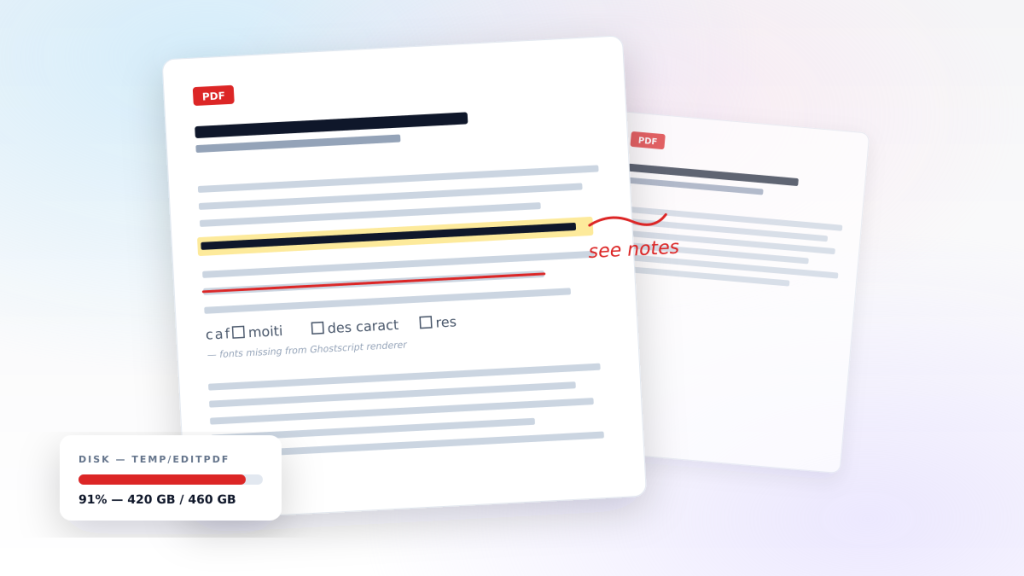
Every term, around assignment-marking week, we get the same shape of email. It usually opens with something like: "The teachers can mark some PDFs but not others, and a few are coming up as squares and boxes — is the server broken?"
The server is rarely broken. PDF annotation in Moodle™, and in most LMSes that bolt on a similar feature, is one of those quiet little subsystems that everything depends on for two weeks of the year and nobody thinks about for the other fifty. When it goes wrong, it goes wrong in three distinct ways, in roughly this order:
- The annotation tool refuses to open a submission at all, or shows a blank page.
- Letters in the rendered PDF turn into squares, boxes, or random Cyrillic for no reason anyone can see.
- The
moodledatapartition fills up over a couple of weeks and nobody can work out why.
These are all the same problem, dressed in different clothes. Almost all of it comes back to the toolchain Moodle™ uses behind the scenes to flatten and re-render the submitted PDFs so they can be drawn on. So let's walk through it the way we walk through it on a real client call.
What actually happens when a teacher clicks "annotate"
When a student uploads a PDF for an assignment and a teacher opens it in the marker, Moodle™ doesn't show them the original file. It converts each page of the PDF into a flat image, lays that image into the annotator canvas, and stores any pen strokes, highlights and comments as a separate overlay. When the teacher is done, Moodle™ stitches the overlay back onto the flattened pages and produces a new annotated PDF for the student.
That conversion — PDF in, page-images out, PDF back in — is where everything interesting happens. Out of the box, Moodle™ uses Ghostscript for it, via the pathtogs setting in Site administration → Server → System paths. Some sites have additionally installed Poppler's pdftoppm alongside it, either by hand or via a plugin, because Poppler tends to do a better job on certain classes of file.
If you've never looked, go and check that setting now. We've seen institutions where pathtogs is empty, points at a binary that no longer exists after a server migration, or points at a Ghostscript so old its security advisories are no longer maintained. Any of those will produce one of the three failure modes above.
Failure mode 1: blank pages and the silent fail
The dullest of the three. The PDF reaches Moodle™, Moodle™ hands it to Ghostscript, Ghostscript falls over, and the teacher sees either a blank annotation canvas or a polite "this submission couldn't be converted" message in the gradebook.
Three things to look at, in order:
- The Ghostscript path is valid and the binary is executable by the web user (
www-dataon most Debian/Ubuntu hosts). A surprising number of CVE-driven OS upgrades quietly remove thegsbinary and replace it with a version under a different name; awhich gsfrom a shell aswww-datais the first thing we run. - The temp directory Moodle™ uses for conversion is writable. Default is
moodledata/temp/assignfeedback_editpdf/. We have seen this end uproot:root 700after a careless restore from backup, and Ghostscript silently fails because it can't write its intermediate files. - The submitted PDF itself isn't using a feature your Ghostscript doesn't support. PDFs with JBIG2 compression, recent JavaScript-based form features, or some kinds of digital signatures will throw Ghostscript into a state where it returns 0 but produces no output. The Moodle™ log just shows "no images generated"; you have to run the same command Ghostscript runs, by hand, to see the real error.
Almost all of these are environmental, not Moodle™'s fault. The fix is usually a five-minute investigation followed by a one-line config change.
Failure mode 2: boxes, squares and the wrong language
This is the one that ruins teachers' Saturdays. The PDF opens, the annotator works, but the text on the page has become unreadable — usually as □ glyphs (the famous "tofu"), sometimes as the wrong characters entirely, sometimes as a single repeated letter where there should be a paragraph.
This is almost always a font problem, and almost always Ghostscript-related.
A PDF doesn't have to embed the fonts it uses. The spec is reasonable about this: if the document uses one of the 14 "standard" fonts (Helvetica, Times, Courier and a few others), the renderer is expected to have something equivalent. If the PDF uses anything else — and almost every PDF generated by Word, Pages, LibreOffice, or an institutional template these days does — the fonts have to be embedded inside the file. They usually are, but they're typically subsetted: only the glyphs actually used in the document are included, often under a renamed font name like AAAAAA+CalibriBold.
Ghostscript reads that subset and renders it. Usually. The pathological cases are:
- The PDF embeds the font, but only as glyph shapes with no ToUnicode mapping. Ghostscript draws the shapes correctly, but anything downstream that wants to extract text — including Moodle™'s "extract text" indexer — gets garbage.
- The PDF expects the renderer to fall back to a system font for some characters (typically CJK, Cyrillic or maths symbols) and your Ghostscript was installed without those system fonts. This is where the boxes appear. The PDF says "render U+4E2D in Songti", Ghostscript shrugs, you get a square.
- The PDF was produced by a Mac that quietly used Apple's bundled San Francisco variants, didn't embed them, and now expects them to be on the renderer. They never are, on a Linux server.
On Debian-family systems, the immediate-fix toolkit is:
apt install fonts-noto-core fonts-noto-cjk fonts-noto-cjk-extra \
            fonts-dejavu fonts-liberation ttf-mscorefonts-installer
That last one needs you to accept the EULA on install. ttf-mscorefonts-installer is the one that quietly fixes 90% of "boxes where Calibri should be" cases, because so many institutional PDFs were originally Word documents.
After installing fonts, rebuild the fontconfig cache (fc-cache -fv) and — this catches a lot of people — restart the web server so PHP-FPM picks up the new font list. Ghostscript reads /usr/share/fonts at process start, not on demand.
If the fonts are there but the boxes persist, it's worth trying Poppler. That's the next section.
Ghostscript vs Poppler: when to switch, and what changes
Ghostscript is the venerable workhorse. It's a full PostScript interpreter that happens to also read PDF. It can do almost anything you can throw at it, including PDFs from 2003 that some institutions are still circulating. Its weaknesses are weight (it's a big process, slow to start, memory-hungry on large documents), occasional security CVEs that need patching the day they drop, and the font issue described above.
Poppler is a much narrower tool. The binary we care about is pdftoppm, which converts PDF pages to PPM/PNG/JPEG. It does that one thing, fast, and tends to do it well. Its strengths:
- Faster — often 3–5× quicker than Ghostscript on the same PDF, especially for multi-page documents.
- Better unicode and CJK handling in our experience, because it leans on the same font and rendering libraries (
freetype,fontconfig,cairo) that everything else on a modern Linux desktop uses. - Lower memory footprint per page.
- Has a much smaller security surface area, because it isn't trying to be a full PostScript interpreter.
It loses to Ghostscript on:
- Some old or strange PDFs (older signature schemes, certain DRM containers, very old scans).
- PDFs that mix in PostScript fragments — rare but they exist, especially in academic scanned-and-reprocessed handouts.
- A handful of corner cases around layered PDFs and ICC-tagged colour profiles.
For institutions where the assignment workflow is "students upload Word-or-Pages-exported PDFs, teachers annotate, PDF goes back" — which is almost everyone — Poppler wins. The font cases work better, the annotation queue moves faster, and the disk usage is lower because conversion is cleaner.
Moodle™ accepts a Poppler-based conversion path either through a maintained third-party plugin or — the cleaner route — by routing assignfeedback_editpdf through the Document converter service. We're happy to walk you through the switch (a few hours of work plus a careful regression test). The rough cost-benefit, in our experience: "Ghostscript-grade compatibility is rarely needed; Poppler-grade speed and font handling almost always is."
Failure mode 3: the moodledata partition that won't stop growing
Now the fun one.
A client called us in October because their moodledata partition had gone from 380 GB to 420 GB in two weeks, with no new courses, no new students, and no obvious uploads. They'd already doubled the volume once that year and weren't keen to do it again.
The growth was almost entirely in moodledata/temp/assignfeedback_editpdf/.
When Moodle™ converts a PDF for annotation, it produces:
- One
.pngper page at the configured resolution (usually 100 DPI, sometimes higher). - A combined raster version of the original at the same resolution.
- A separate copy of the annotated overlay.
- A flattened "final" PDF that gets stored properly under the user's files area.
Most of those are supposed to be temporary. Moodle™'s scheduled tasks tidy them up. The trouble starts when:
- Cron isn't running reliably — we see this a lot, particularly on shared hosts where cron is throttled, or on Kubernetes deployments where the scheduled-tasks container wasn't given enough memory and gets OOM-killed mid-cleanup.
- A site has been upgraded across a major version and the old temp directory schema is left behind alongside the new one. Both fill up.
- An annotation conversion crashed before completing — Ghostscript fault, font problem, anything — and left orphaned intermediate files that nothing ever owns enough to delete.
- The institutional configuration sets a very high DPI for legibility. Going from 100 DPI to 200 DPI is a 4× increase in image size, per page, per submission. Multiply that by an exam-week submission spike and you'll feel it on the disk.
The fix is rarely "buy more storage". The right shape is:
- Confirm cron is running and the editpdf cleanup tasks have run recently (Site admin → Reports → Scheduled tasks).
- Find the orphans. A safe pass is anything in
temp/assignfeedback_editpdf/older than the last successful run of the cleanup task and not referenced in themdl_assignfeedback_editpdf_*tables. We have a small script for this we hand to clients on engagements. - Drop the conversion DPI back to 100 unless there's a genuine accessibility need higher. Most teachers can't tell the difference and the disk certainly can.
- Consider switching to Poppler, which produces cleaner intermediate output and tends to leave less mess.
In the case above we recovered 38 GB on the first night and put the institution on monitoring for the rest of the term. Disk pressure didn't reappear.
A note on Moodle vs other LMSes
We've described all of this in Moodle™ terms because that's where most of our work happens, but the same problems show up in Open edX (whose inline PDF features use their own converter chain), Canvas LMS (which uses server-side renderers for inline grading), and even self-hosted Blackboard installations that use a similar Ghostscript-based pipeline behind the inline grader. The directory names change. The pattern is the same: a PDF toolchain that sits behind a "graders' favourite feature", that nobody owns, that quietly fills disks and produces tofu when fonts are missing.
Seeing any of the three failure modes — annotations that won't open, boxes instead of letters, or a temp/ that won't stop growing? Talk to an engineer — we'll dig into the logs with you, free first hour. We do this on Moodle™ every week, and on most other LMSes too. See our emergency recovery and upgrades & maintenance services for the longer engagements.