The Moodle™ mobile app: how to install it, and the site setting that has to be on
The Moodle™ mobile app for iOS and Android — where to install it, the three site-admin switches your Moodle™ needs before the app can log in, and the feature toggles (notifications, QR-code sign-in, SSO) worth turning on.
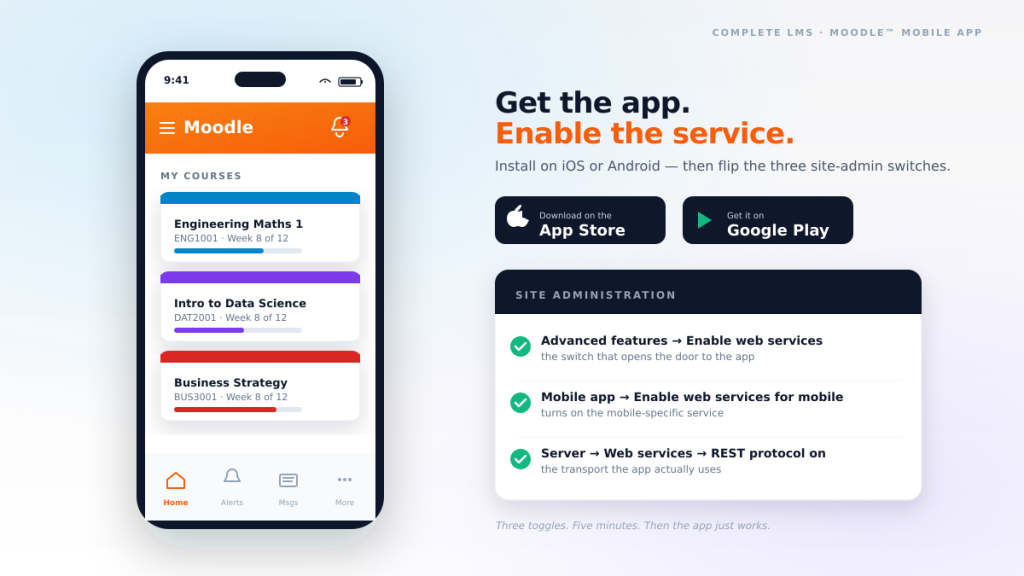
Twice a year, on the Monday morning of a new semester, we get roughly the same call. A teacher says: "The students are asking me about the app — they have downloaded it but it will not log in." Or a bit later in the term: "The head of school wants push notifications when new content lands."
The Moodle™ mobile app is a lovely piece of software. It is the official mobile client, made by Moodle Pty Ltd, and it does most of what a modern LMS should do on a phone: offline access to course pages, push notifications for forum posts and grades, quiz-taking, upload photos of assignment work straight from the camera. Students genuinely use it — heavily — on sites where it is set up properly.
The catch is that it does not work by default. There is a specific site-level setting your Moodle™ admin has to enable before the app can talk to your site at all, and if that switch is not on, users see a confusing "site not compatible" error and give up. So this is the quick guide: where to install the app, how to actually turn on the mobile service, and the three optional toggles worth flipping while you are in that screen.
What the Moodle app actually is
The Moodle app is the official iOS and Android client for Moodle™ sites. It is a free download, distributed by Moodle Pty Ltd from the App Store and Google Play. It is not a webview wrapper of the site — it is a native app that talks to your Moodle™ over Moodle's web-service API and stores enough locally that most of it keeps working when the student has no signal.
What it gives you that a mobile browser tab doesn't:
- Offline course access. Students can download a course before leaving campus and read it on the train.
- Push notifications. New forum posts, calendar reminders, graded assignments — appear on the lock screen.
- Camera capture straight into an assignment upload. Take a photo of a whiteboard, submit it as a file. Two taps.
- Faster navigation. No page reload between activities.
- Persistent login. Once a student signs in on the app, they stay signed in — no session-timeout redirects mid-quiz.
A single install of the app can connect to multiple sites, so a student taking classes at two institutions can flip between them from the same app.
Where to download it
Two versions matter for most institutions:
- iOS (iPhone / iPad): "Moodle" by Moodle Pty Ltd on the App Store — apps.apple.com/app/moodle/id633359593
- Android: "Moodle" by Moodle Pty Ltd on Google Play — play.google.com/store/apps/details?id=com.moodle.moodlemobile
There is also a version on the Huawei AppGallery for regions where Google Play is not available. And a separately-branded Moodle Workplace app for the paid enterprise product — you probably do not want that one unless you know you do.
The one bit of housekeeping: check the developer name on the store listing says Moodle Pty Ltd. There have been look-alike apps over the years. The official one has been around since 2013 and has millions of downloads — hard to miss, but worth a two-second glance at the developer field.
The bit nobody tells you
A default Moodle™ install has web services turned off. The mobile app talks to your Moodle™ site over web services. Do the maths: out of the box, the app cannot log in.
The first time a student tries, they get an error message that says something along the lines of "This site is not compatible with the Moodle app" or "This site does not allow mobile app connections." Which is technically correct but not helpful. What is needed is for someone with site-administrator access to flip three switches.
Enabling the mobile service — three switches
You need site-administrator access for this. Log in to your Moodle™ site with an admin account, and go through these in order:
- Enable web services. Site administration → Advanced features → Enable web services → tick the box → Save changes at the bottom of the page.
- Enable the mobile service. Site administration → Mobile app → Mobile settings → Enable web services for mobile devices → tick the box → Save changes.
- Confirm the REST protocol is on. Site administration → Server → Web services → Manage protocols → find
REST protocolin the list and confirm it is enabled (there is an eye icon on each row — an open eye means enabled, a closed one means disabled). This is on by default in Moodle™ 4.x but is worth checking.
That is the minimum. As soon as those three are on, a student can install the app, type your Moodle™ URL, and log in with their normal username and password.
Test it before you announce it
Make a test account before you tell 3,000 students the app is ready. Install the app on your own phone, enter the site URL (https://your-moodle.example.edu.au — the app really does need HTTPS, plain HTTP is rejected), and try to log in with the test user.
If it works, you will see the app dashboard with your courses. If it does not, the error you get tells you where to look:
- "Site not compatible" / "This site does not support the app". One of the three switches above is not on. Go back through them in order.
- "Cannot connect" or timeout. The site URL is wrong, or your Moodle™ is not accessible from the public internet. Some institutions restrict Moodle™ to the internal network — the app cannot reach it unless the student is on the VPN.
- "Invalid login". The credentials are wrong, or your site uses SSO/SAML and the app has not been configured for the SSO flow yet. Separate section on this below.
- "Site connection is not secure". The app requires a valid HTTPS certificate at the origin. If your Moodle™ serves HTTPS with a self-signed or expired cert, the app refuses to connect. Get a real certificate from Let's Encrypt or your CA of choice.
Three toggles worth flipping while you are there
Once the basics work, the same Mobile app section of Site administration has a small pile of useful settings. Three are worth turning on straight away:
- Push notifications. Mobile app → Mobile notifications. Enable notifications and register with the Moodle Airnotifier service (free for small sites, has a per-site quota via a paid plan for heavy senders). We turn this on for every client we host — students are dramatically more engaged when they get a phone notification for a new forum post or a released grade, and it is a five-minute setting.
- App appearance. Mobile app → Mobile appearance. Set a logo, primary colour and login banner so the app matches your institution's brand. It is a small change but the app looks noticeably more polished when it opens with your logo instead of the default Moodle™ orange.
- Trim the features that do not apply. Mobile app → Mobile features. Hide app features you don't use — competencies, badges, blogs, some plugin features — so students don't see options that lead nowhere. Worth doing before a wide rollout.
The QR-code trick
Under Site administration → Mobile app → Mobile settings there is an option called QR code to access the mobile app. Turn it on with the URL and automatic login mode.
Now, on each student's user profile page, there is a QR code they can scan from the app to skip typing the site URL and their username. Open the app, tap the "Scan QR code" option on the login screen, point at their profile in a browser, done. It saves them a lot of typing and it is the single biggest reduction in "I cannot log in" tickets we have seen after enabling. Highly recommended for large sites.
A quick note on SSO / SAML
If your institution uses SSO (SAML, LDAP+SSO, OAuth, Shibboleth) the app has a specific configuration mode that lets the login flow open a browser tab, complete the SSO handshake, and hand a token back to the app. This is called Via a browser window in Moodle's admin screens.
Turn it on at Site administration → Mobile app → Mobile settings → Type of login — choose Via a browser window if your users authenticate through an external identity provider. Without this, users who do not have a Moodle™-local password get "invalid login" even when everything else is enabled. It is the second-most-common cause of "the app does not work" we see, right after "web services are off".
If you would like the Moodle™ mobile app rolled out cleanly on your site this semester — the three switches, notifications, branding, the SSO flow if you use one, and a QR-code rollout to the whole student body — talk to an engineer. We do this often enough that the settings are muscle memory, and we will make sure the rollout does not produce the flood of "I cannot log in" tickets that a hasty enable usually creates. See our Moodle™ training and managed Moodle™ hosting services for the longer engagements.